



Meeting with your Solicitor
As part of our COVID-19 contingency, Ringrose Law is now using Microsoft Teams as a way to communicate with clients. This allows us to conduct safe and secure online meetings.
Your case handler will invite you to join them in Microsoft Teams for a voice or video meeting, you will receive an email from Microsoft Teams on behalf of Ringrose Law inviting you to join a meeting.
In order to participate you will need to have an email account and be able to install Microsoft Teams on your device. Desktop devices will need sound capabilities and a camera if you wish to have a video link. The instructions below will help you with this.
Clients who currently have Teams
If you have used Microsoft Teams and are familiar with using it, these instructions will explain how you will be invited to the meeting.
When your case handler has invited you to join them in Microsoft Teams, you will receive an email from Microsoft, on behalf of Ringrose Law, notifying you of the meeting with a link to join.
From the email, click "Join Microsoft Teams Meeting".

You will then be asked to “Open Microsoft Teams”.
As you already have Teams installed you can click “Open Microsoft Teams”.
There is the option to use the “Web App” if you prefer.
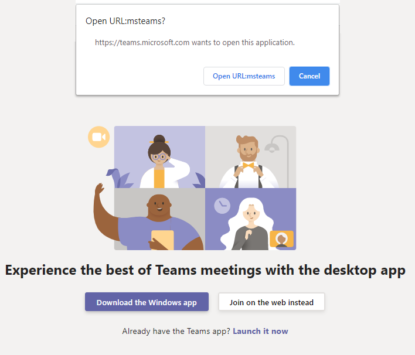
Teams should then continue to open as normal and connect you to the meeting. If you are the first to join you will be placed on hold to wait for your case handler to join.
Clients who do not have Teams - Desktop
If you have not used Microsoft Teams before these instructions will help you to connect to the meeting.
These instructions are for desktop devices with audio and visual capabilities using the Teams desktop app.
When your case handler creates a meeting you will be automatically notified of the meeting via email which contains a link to join the meeting.
To avoid delays prior to the meeting it is advisable to set up Teams in advance of the meeting. To do this, click the link for “Join Microsoft Teams Meeting“.
This will start to open teams in your browser.
Click “Download the Windows app”
Teams will then begin to download Teams. Once downloaded you can install Teams.
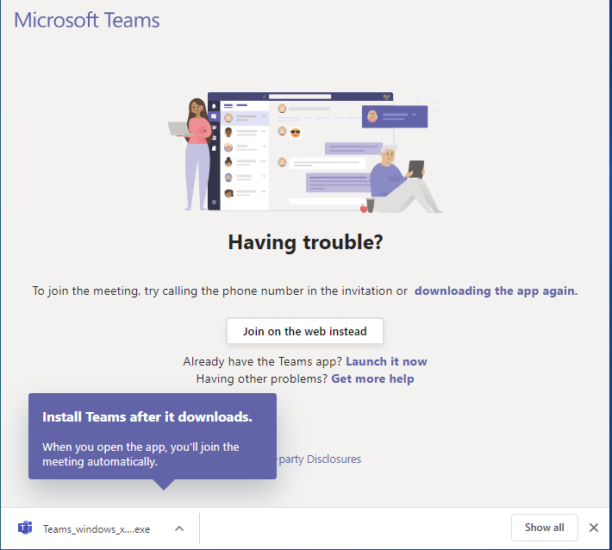
Once it is installed it should automatically open and take you to the meeting where it will prompt you to join.
At this stage it is not necessary to join so click “Close” and then close Teams.
At the appointment time, you can join the meeting by clicking the “Join Microsoft Teams meeting” link in the original email. This will begin to open Teams in your browser.
As you have already installed teams, there will be a prompt for you to open teams.
Click “Open Microsoft Teams”.
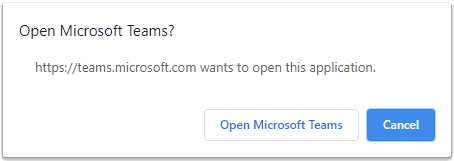
This will open a connection to the meeting and ask you to choose your audio and video options and to enter your name.
When set click “Join Now” to join the meeting.
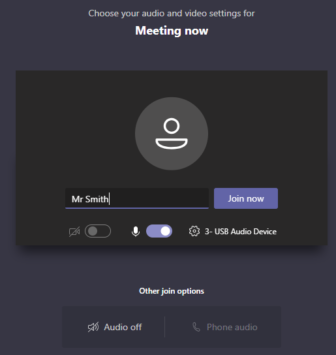
If you are the first to join the meeting you will be asked to wait until the meeting begins.
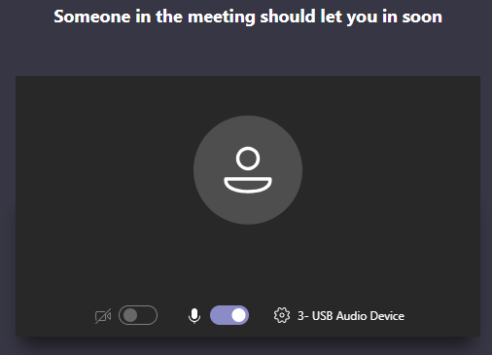
Once your case handler joins you will be connected to the meeting for voice and video (if selected).
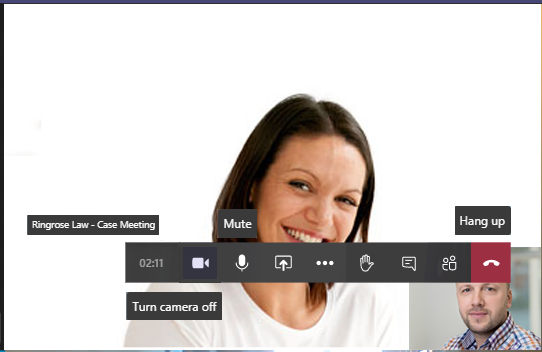
Once the meeting is concluded, click “Hang Up” to close, then close Teams.
Clients who do not have Teams - Mobile
If you have not used Teams before these instructions will help you to connect to the meeting.
These instructions are for mobile devices with audio and visual capabilities using the Teams mobile app.
When your case handler creates a meeting you will be automatically notified of the meeting via email which contains a link to join the meeting.
To avoid delays prior to the meeting it is advisable to set up Teams in advance of the meeting. To do this, tap the link for “Join Microsoft Teams Meeting“.
This will start to open teams in your browser.
Tap “Get Teams” then download Teams and allow it to install.
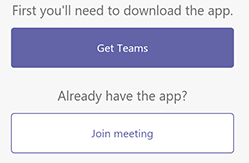
Once installed it should automatically open.
At this stage it is not necessary to sign in or join so close Teams until the appointment time.
At the appointment time, you can join the meeting by tapping the “Join Microsoft Teams meeting” link in the original email.
This will open teams, tap on “Join as guest”.
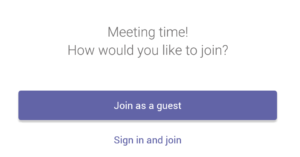
Enter your name when prompted then tap “Join as guest”.
Allow Teams to record audio and video if prompted.
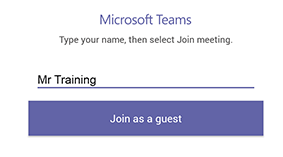
Teams will then connect you to the meeting.
If you are the first to join the meeting you will be asked to wait until the meeting begins.
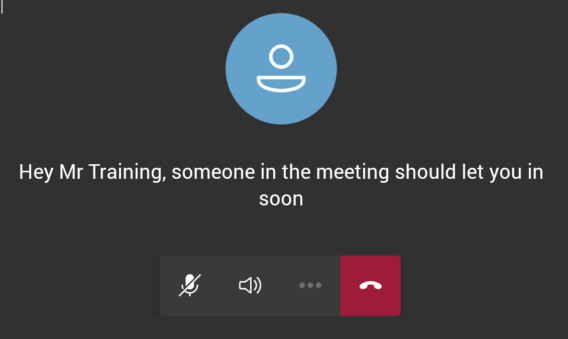
Once your case handler joins you will be connected to the meeting for voice and video (if selected).
Once the meeting is concluded, click “Hang Up” to close, then close Teams.